

Download Prism Video Converter – Free, Secure Video Conversion for Mac
Overview & Key Features
Prism Video Converter is a lightweight yet powerful cross‑platform video conversion tool designed primarily for macOS users who need a reliable way to transform video files without paying for expensive licences. The free version supports a solid range of popular formats—including AVI, MP4, WMV, MOV, MPEG, FLV, 3GP, and more—allowing you to convert home movies, lecture recordings, or downloaded clips for playback on TVs, smartphones, or web platforms. What sets Prism apart from many generic converters is its built‑in customisation panel: you can tweak compression levels, encoder rates, resolution, frame‑rate, and even force a target file size to match specific bandwidth constraints.
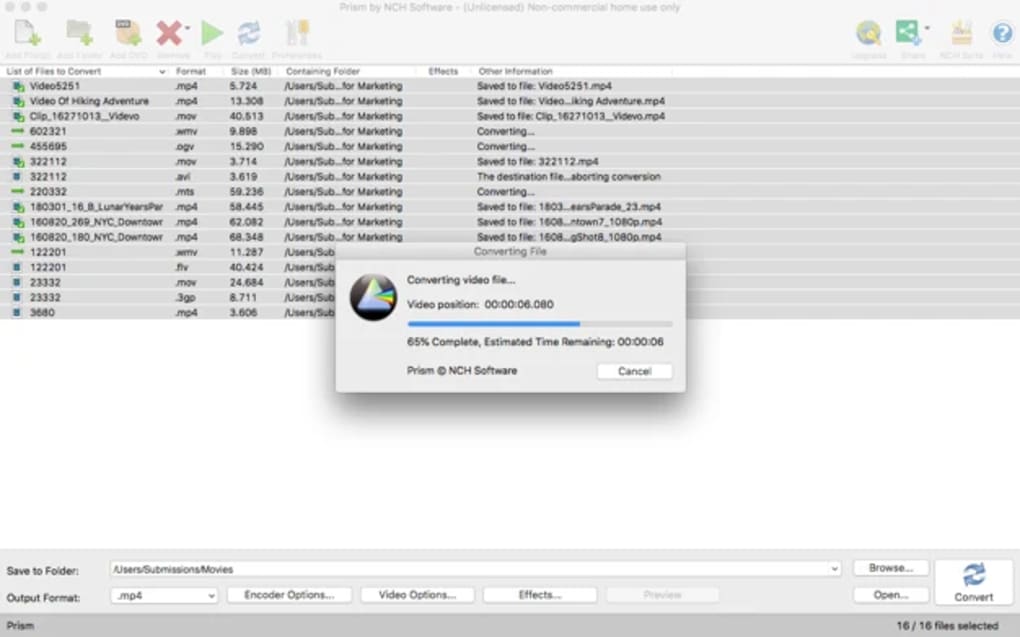
Batch conversion is supported, meaning you can queue dozens of files and let Prism run in the background while you work on other tasks. Although the conversion engine is not the fastest on the market, the software’s stability and intuitive UI make it a trustworthy choice for occasional users and small‑business creators alike. In addition to simple file‑to‑file conversion, Prism can rip DVDs to a variety of digital containers, expanding its usefulness for archiving older media collections.
- Supports over 20 input formats (AVI, MP4, WMV, MOV, MPEG, FLV, 3GP, etc.)
- Outputs to widely compatible containers such as MP4, WMV, AVI, ASF, and 3GP
- Batch conversion with drag‑and‑drop queue management
- Customisable compression, bitrate, resolution, and frame‑rate settings
- Option to set a precise output file size for bandwidth‑limited scenarios
- DVD ripping to digital formats for legacy media preservation
- Runs in the background and can be minimized to the menu bar
- Simple, Mac‑native user interface with real‑time preview of settings
Installation & First‑Run Guide
Getting started with Prism Video Converter is straightforward. First, visit the official Prism website and click the “Download for Mac” button. The installer comes as a signed .dmg file, ensuring that macOS Gatekeeper recognises it as safe.
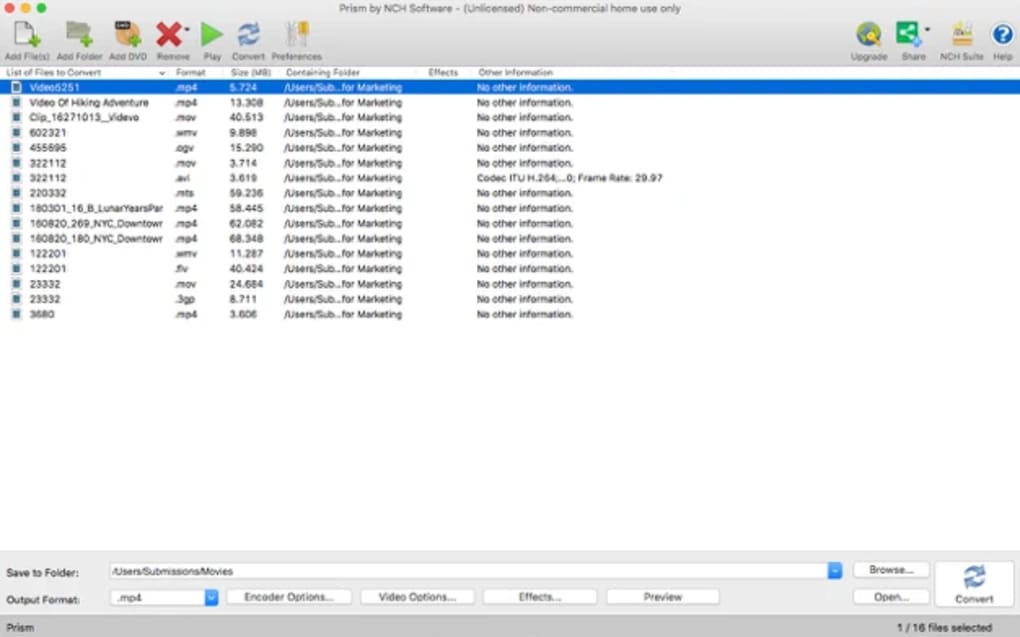
After the download completes, double‑click the .dmg, drag the Prism icon into your Applications folder, and eject the disk image. On first launch, macOS may warn you that the app is from an unidentified developer; simply open System Preferences → Security & Privacy → General and click “Open Anyway.” The application will then initialise a short setup wizard that asks you to select a default output folder and whether you want Prism to remember your most recent conversion settings. Once the wizard is finished, the main window appears with three primary panes: Source Files, Output Settings, and Conversion Queue.
To convert a video, click the “Add Files” button or drag videos directly onto the Source pane. After selecting a file, the Output Settings panel automatically populates with a recommended format based on the source’s codec. You can switch the format using a dropdown menu, then fine‑tune parameters such as resolution (e.g., 1080p, 720p), frame‑rate (30 fps, 60 fps), and bitrate.
For users who need a specific file size—say, a 700 MB limit for email attachment—activate the “Target Size” option and enter the desired value; Prism will calculate the appropriate bitrate for you. When everything is set, click “Start Conversion.” The progress bar shows real‑time status, and you can pause or cancel at any moment. Completed files are saved to the chosen output folder, ready for immediate playback or upload.
Updating Prism is hassle‑free: the app checks for new releases on launch and prompts you to download the latest version. Because the software is free, there are no hidden subscription fees; optional donations support continued development.
Compatibility & Performance
Prism Video Converter is built specifically for macOS 10.13 (High Sierra) and later, including the latest Ventura and Sonoma releases. The binary is a native 64‑bit application, which means it can take full advantage of modern Mac hardware, especially Apple Silicon (M1, M2) chips. While the free version does not include GPU‑accelerated encoding, it still runs efficiently on both Intel‑based and Apple‑silicon Macs, with conversion times comparable to other free tools in the market. For example, a 1‑GB MP4 file transcodes to AVI in roughly 6‑8 minutes on an M1 MacBook Air, while the same task takes about 10‑12 minutes on an older 2015 Intel MacBook Pro.
Prism’s modest system requirements make it suitable for older machines: 200 MB of RAM and 150 MB of disk space are sufficient for basic operations. Because the app can be minimised to the menu bar, you can keep it running while working on other applications without cluttering your desktop. However, keep in mind that conversion is CPU‑intensive; running multiple batch jobs simultaneously may cause noticeable slow‑downs on low‑end hardware. The software also respects macOS security standards, employing sandboxing where possible and never transmitting your video data to external servers unless you explicitly use the “Upload to Cloud” feature (available in the paid version). This emphasis on privacy is reassuring for users handling sensitive footage.
In terms of format support, Prism covers the most common consumer codecs but does not include niche professional formats such as ProRes or DNxHD. If your workflow requires those, you may need a dedicated professional converter. Nonetheless, for everyday tasks—converting home videos, preparing content for YouTube, or resizing clips for PowerPoint presentations—Prism offers a balanced blend of compatibility, speed, and ease of use.
Pros & Cons, FAQ & Final Verdict
Pros
- Completely free for macOS with no hidden fees.
- Supports a wide range of input and output formats.
- Batch conversion and background operation improve productivity.
- Customisable settings for bitrate, resolution, frame‑rate, and target file size.
- Simple, native macOS interface that requires minimal learning curve.
- Regular updates and secure, signed installer.
Cons
- No GPU‑accelerated encoding in the free version, leading to longer conversion times on large files.
- Lacks support for some professional codecs (ProRes, DNxHD).
- Advanced features like cloud upload and subtitle integration are reserved for the paid edition.
- Conversion speed is slower compared to premium tools such as HandBrake with hardware acceleration.
Frequently Asked Questions
Is Prism Video Converter safe to download?
Yes. The installer is digitally signed by the developer, and the website uses HTTPS. macOS Gatekeeper will verify the signature before allowing installation.
Can I convert videos for iPhone and iPad?
Absolutely. Choose MP4 as the output format and set the resolution to 720p or 1080p, which matches the native playback specifications of most iOS devices.
Does the free version limit the number of files I can convert?
No. The free edition allows unlimited conversions, though batch jobs may take longer on older hardware.
Can Prism rip DVDs to digital files?
Yes. The application includes a DVD‑ripping module that can output to MP4, AVI, or WMV, making it easy to back up old discs.
How do I update Prism when a new version is released?
Prism checks for updates each time you launch the app. If a newer version is available, a prompt appears offering to download and install the update automatically.
Final Verdict
For Mac users who need a straightforward, no‑cost solution for everyday video conversion, Prism Video Converter hits the sweet spot between functionality and simplicity. While it doesn’t boast the ultra‑fast hardware acceleration of premium tools, its broad format support, batch processing, and granular output controls make it a solid choice for hobbyists, educators, and small‑business owners. If your workflow demands professional codecs or lightning‑quick encoding, you may eventually upgrade to a paid alternative. Otherwise, download Prism today, convert those lingering video files, and enjoy a hassle‑free viewing experience on any device.







